Tabs and chart comparison Pro
Pro mode adds a tab bar above the wheel. It's handy when you work with several charts at once, say the whole family.
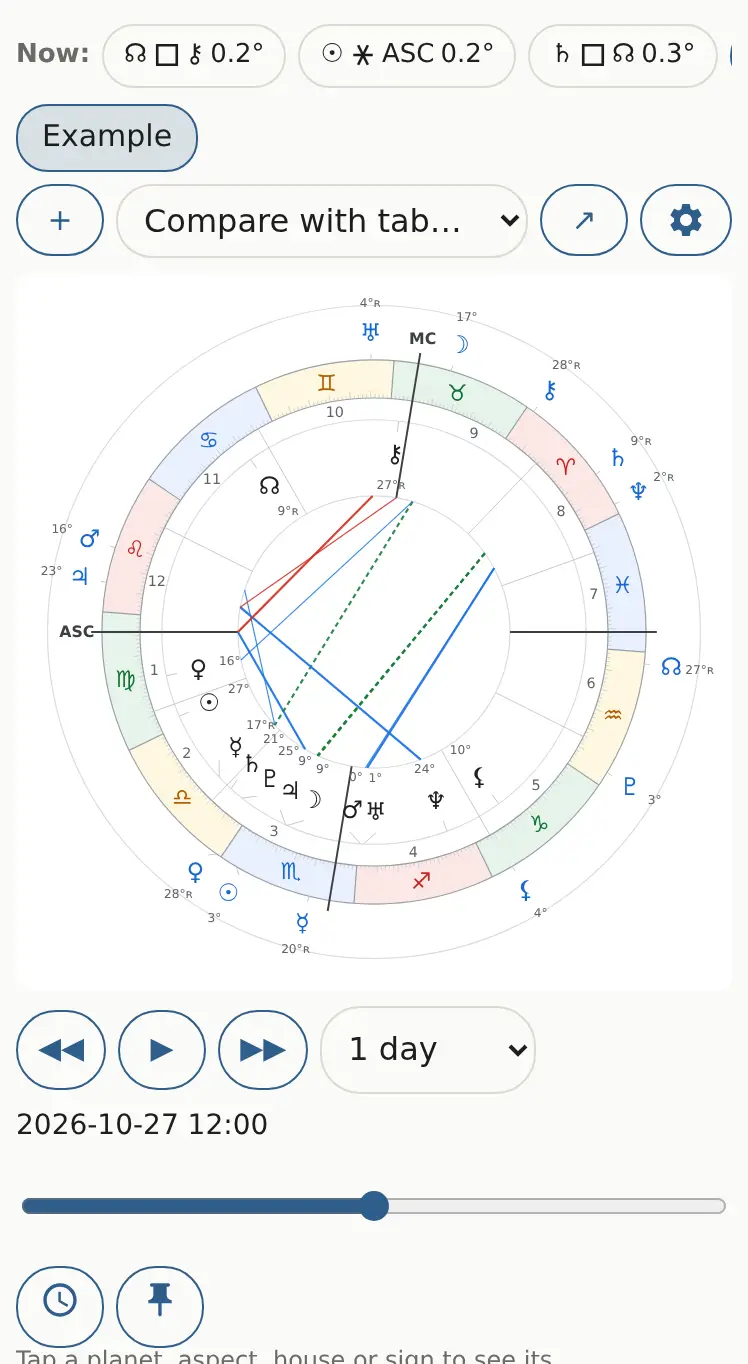
Tabs
- Click “+”. A new tab appears, for now a copy of the current chart.
- Open a saved chart from the menu, or enter other data and click “Build chart”. The new chart takes over that tab.
- Click a tab to switch charts. The × on a tab closes it.
Each tab remembers the whole form: data, forecast method, rings, comment. Tabs last until you close the browser window.
Compare with tab
Pick another tab in the “Compare with tab…” list. A second wheel appears next to yours: the natal chart from that tab, captioned underneath. On a wide screen the wheels sit side by side; on a phone, one above the other.
For synastry (aspects between two charts on one wheel), use the “Synastry” forecast instead: see Synastry, composite, Davison.
New window
The “↗” button opens the current chart in a new browser window. Useful with two monitors.